This page is currently under construction! Thus, the information on here is not complete.
Need to quickly reach a specific section? Use this table of contents!
- A little background on intent and purpose.
- What software do you create PDFs with?
- Stylistic Elements
A little background on intent and purpose.
A few months ago, I was tasked with researching up-to-date guidelines on creating PDF posters that are accessible to low-vision and blind users. Using that information, I was to create a short guide. I quickly discovered that this subject was much more complex than I initially thought, and it didn’t seem like any one guide had all the information. So I decided to create my own, synthesizing as much of the available information as I can, and expanding it to be inclusive of all disabilities.
It is my hope that this guide will remain publicly available on my website, and if not here, then elsewhere on the web. I will never lock any information in this guide behind a paywall. Accessibility information should be, well, accessible.
If you want to recreate portions of this guide for other uses, you have my permission. All I ask is that you credit me and, if possible, link back to this page.
Accessibility is a key element of putting content out anywhere, especially online. If your content can be accessed by anyone anywhere in the world, then they should be able to fully comprehend it. So if you’re making PDFs for almost any purpose, trying to make them as accessible as possible is usually a good choice.
However, staying caught up with recommendations can be difficult. Practicing accessibility is an ongoing process of learning, and you’re not always going to get it right. That’s ok.
[once the guide is complete: As part of that, I also know I haven’t gotten this guide perfect and all-comprehensive. If you have recommendations for knowledge, changes, or resources to be added to this page, please contact me to let me know! Use the subject line “accessibility information” so I can easily see your message in my inbox.]
Where these guidelines come from.
The information on this page comes from many sources, some of which reference each other. Of primary consideration are the Web Content Accessibility Guidelines (WCAG) and standards set by various colleges and universities. I have also gathered information from what accessibility experts say online, and what disabled people themselves have said in forums and threads.
The WCAG standards operate on levels of conformance, ranging from A (lowest), to AA, to AAA (highest). They do this to acknowledge the various levels at which different modifications can help disabled users, as well as the difficulty of implementing a specific guideline and the skills required. Depending on your purposes, you might only need A level compliance.
So, with all of that in mind, let’s jump into the guidelines!
What software do you create PDFs with?
Your software is your vital starting point, because it controls what features you can give your PDF. First, I’ll provide a brief list of common options and their pros and cons. Then, I’ll go deeper into some of those options.
| Software | Pros | Cons |
| Microsoft Word | Some of the best accessibility options, commonly used | Not free, complicated formatting is a pain |
| Google Docs* | Many of the same features as Word, accessible platform | Does not tag PDFs, formatting is even trickier than Word |
| Canva* | Good design options, smoother interface | Limited formatting and accessibility options |
| Adobe Acrobat Standard or Pro | Great accessibility options, remediation services | Not financially accessible to many |
| Photoshop | Good design options | Not good for PDFs |
| InDesign | Good accessibility options, lots of design potential | Not financially accessible, more complicated to use |
Now let’s look at a further explanation of these options:
Microsoft Word: Personally, this would be my recommendation, if it is financially accessible. Many schools and workplaces offer Microsoft Office plans, either for free or at a discount. Word tags PDFs (more on this later), has most of the accessibility options you need, and is fairly easy to use. Complicated designs become more tricky, making things like posters harder to create. But Word is a good balance of price and features.
Google Docs: What I use, because of ease, habit, and accessibility. It has most of the features of Word, with one key detractor: it does not tag PDFs. While this can be remediated by running it through Word, an easier solution is Adobe’s free autotagger, linked later in this guide.
Canva: The only design type on Canva that can create accessible PDFs is the “Document” type (not the “Doc” type!). While I appreciate Canva’s design options, even they admit that their PDFs are not WCAG-compliant. In my testing, I was able to create a PDF that could be read by a screen reader, but that is not the only marker of accessibility, and may not always be the case.
Adobe Acrobat Standard/Pro: As the godfathers of PDFs, Adobe offers what may be the best accessibility options out there. They also allow you to remediate PDFs, meaning take inaccessible PDFs and make them accessible. However, due to their price point and the fact that I believe accessibility tools shouldn’t be locked behind a paywall, they are not my top recommendation.
Photoshop: People may turn to Photoshop to make posters, but aren’t likely to use it for most PDF needs. Because this software isn’t designed for making documents, it lacks a lot of the accessibility features that other options offer.
InDesign: Again, Adobe offers most of the accessibility features you’d need. InDesign can be a convoluted software though, and is once again locked behind a high price point. If you have access to it, it is a great choice.
How to properly export your PDF.
Now that you know what software to use, it’s important to know how to export your PDF. My image examples are made in Google Docs, but are very similar to other software available.
Most people simply choose Print and then Save as PDF, like in the example below:
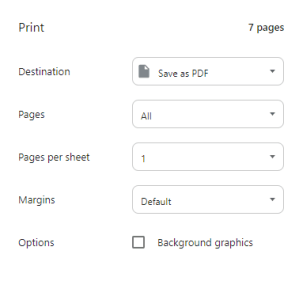
However, doing this can “flatten” your PDF, making most (if not all) of its contents completely inaccessible to a screen reader. It is also likely to not include any document tags.
Instead, export your document as a PDF by going to File→Download (or Export, etc.)→ PDF Document, like this:
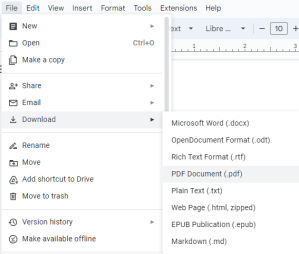
Some software, like Canva, only offers one download option. As long as you aren’t printing to a PDF, you should be good as far as exporting goes.
Stylistic Elements
TK
 Ashton Rose